Implementing Canary Deployments using AWS NLB and ECS
Implementing Canary Deployments using AWS NLB and ECS
Canary deployments enable you to safely release new versions of your application by gradually shifting traffic from the existing version to the new one.
This guide explores how to implement canary deployments using AWS Network Load Balancer (NLB) and Amazon ECS. While this combination offers powerful capabilities, implementing canary deployments with these specific AWS services presents several non-trivial challenges, since canary deployments with NLB are not available out of the box in AWS.
It’s not trivial, but it’s not very complicated. We’ll keep it simple.
Understanding Canary Deployments with AWS Services
Traditional canary deployments typically involve routing a small percentage of traffic to a new version, then gradually increasing it after verifying performance.
While Application Load Balancers (ALBs) support weighted target groups for this method, Network Load Balancers do not have built-in traffic weighting options. However, we can utilize NLB’s flow-based routing algorithm in conjunction with Amazon ECS’s service capabilities to implement canary deployments effectively.
AWS Network Load Balancer Routing Algorithm: Understanding the Flow Distribution Mechanics
AWS Network Load Balancers (NLBs) operate at the OSI model’s transport layer (Layer 4), using a routing algorithm different from that of Application Load Balancers. Understanding this algorithm is essential for effective traffic distribution and designing resilient architectures.
Sticky Connections Without Cookies
Unlike ALBs, NLBs don’t rely on cookies for stickiness. Instead, connections from the same client to the same listener address will be routed to the same target if the connection persists. This behavior particularly benefits applications requiring session persistence without HTTP cookie support.
Core Routing Principles
NLBs employ a flow-based connection routing algorithm rather than the request-based approach used by ALBs. When a connection is established, NLB selects a target based on the 5-tuple hash:
- Source IP address
- Source port
- Destination IP address
- Destination port
- Protocol (TCP/UDP)
This tuple serves as the connection’s fingerprint, ensuring that all packets for the same connection reach the same target throughout the connection’s lifecycle.
Flow Hashing Implications
The flow hashing algorithm has important implications:
- Predictable redistribution: When targets are added or removed, only a proportional subset of existing connections is redistributed
- Connection preservation: Existing connections to healthy targets remain intact during scaling events
- Target group algorithm: Within a target group, NLB uses a flow hash modulo algorithm based on the available targets
Health Check Integration
The routing algorithm also integrates tightly with health checks:
- When a target fails health checks, NLB stops routing new connections to it
- Existing connections to unhealthy targets are not terminated automatically
- Recovery is seamless when targets return to a healthy status
Implementing Canary Deployments using AWS NLB and ECS
For this article, I will use my Docker image, which allows me to launch a server that enables me to run various types of tests. The image is available here. You can also look into the source code.
Implementing Canary Deployments using AWS NLB and ECS involves at least four AWS components:
- Network Load Balancer
- Target Group
- ECS Service
- ECS Task Definition
Traffic Flow in the Canary Deployment
The diagram below illustrates a complete canary deployment architecture that we will implement using AWS Network Load Balancer and ECS.
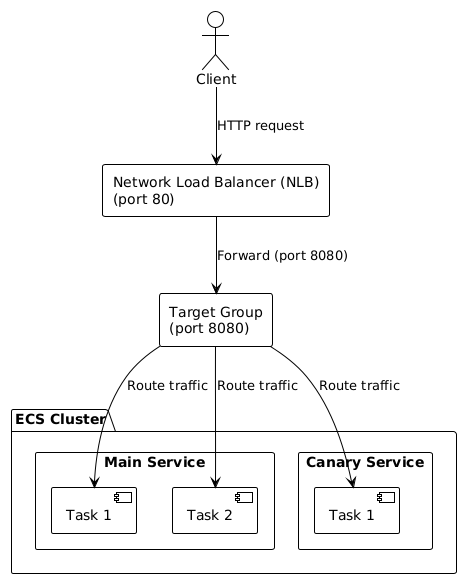
Here’s the flow:
- Client Initiation:
- A client sends an HTTP request to the infrastructure
- The request targets port 80, which is the standard HTTP port
- Load Balancer Processing:
- The Network Load Balancer (NLB) receives the incoming HTTP request on port 80
- The NLB forwards this traffic to port 8080 (where the application services are configured to listen)
- Target Group Distribution:
- The request reaches the Target Group, which is listening on port 8080
- The Target Group is responsible for distributing traffic across multiple destinations
- Traffic Routing:
- The Target Group routes the traffic to services running in the ECS Cluster
- Traffic is distributed between two distinct services:
- Main Service: The primary/stable version of the application (more tasks)
- Canary Service: The new version is being tested with limited traffic (fewer tasks)
- Service Processing:
- Main Service: Contains multiple tasks (Task 1 and Task 2 on the diagram) that process requests
- Canary Service: Contains a single task (Task 1 on the diagram) processing a smaller portion of traffic
- Tasks within each service represent container instances of the application.
This architecture implements the canary deployment pattern by allowing a controlled amount of real user traffic to flow to the new version (Canary Service) while maintaining most traffic to the stable version (Main Service). This approach enables testing the new version under real-world conditions while minimizing the potential negative impact if issues arise.
CDK Project
This is an AWS CDK project in Python for deploying cloud infrastructure on AWS with a canary deployment pattern — running two versions of a service in parallel (main and test). The code source is available on GitHub.
The project is built on AWS CDK with Python, where the infrastructure is split into two independent stacks — VpcStack and EcsStack — each encapsulating its own area of responsibility as a separate class inheriting from Stack. All configuration flows through a centralized get_context() function with type validation. Every resource (task definitions, Fargate services, NLB, security groups, log groups) lives in its own module under the lib/ directory.
Worth noting is the VPC validation performed at synthesis time — before the CloudFormation template is generated, the code queries the AWS API via boto3 to verify that the provided existing_vpc_id actually exists in the target region and account.
What it deploys
- VPC — network with private subnets (new or existing)
- ECS Fargate — serverless container cluster
- Main service — production version of the app
- Canary service — new/test version receiving a slice of traffic
- NLB — load balancer distributing traffic between both services
- Security groups, CloudWatch logs, IAM roles — security and monitoring
Key features
- Multi-environment — deploy to
dev,staging,prodwith no resource name collisions - Config via
cdk.json— Docker images, instance counts, ports, log retention - VPC validation — uses boto3 to verify the provided
existing_vpc_idactually exists before deploying - Modular structure — each resource in its own file under lib/
Example usage
cdk deploy --all -c Environment=prod -c desired_count_main=5
Adding a new environment comes down to passing a -c Environment=staging flag to the CDK CLI, and thanks to the {Project}-{Environment}-{ResourceType} naming interpolation, there is no risk of resource collisions within the same AWS account.
The project serves as a foundation for further development — for example, wiring up a CI/CD pipeline via aws-cdk-lib.pipelines or adding more canary services with traffic weights controlled by listener rules on the NLB.
- If existing_vpc_id is set and not empty, the CDK app will use the specified existing VPC.
- If existing_vpc_id is empty or not set, a new VPC will be created by the VpcStack.
This makes deployment logic simpler and more user-friendly.
- If existing_vpc_id is set and matches the AWS VPC ID pattern, the existing VPC is used.
- If existing_vpc_id is set but invalid, a clear error is raised and deployment stops.
- If existing_vpc_id is empty or not set, a new VPC is created.
How to set traffic to individual clusters
#!/bin/bash

CLUSTER="canary-cluster"
MAIN_SERVICE="main-service"
CANARY_SERVICE="canary-service"
TOTAL_TASKS=10
CANARY_PERCENTAGE=20

MAIN_TASKS=$(( TOTAL_TASKS * (100 - CANARY_PERCENTAGE) / 100 ))
CANARY_TASKS=$(( TOTAL_TASKS - MAIN_TASKS ))

echo "Setting main service to $MAIN_TASKS tasks ($(( 100 - CANARY_PERCENTAGE ))%)"
echo "Setting canary service to $CANARY_TASKS tasks ($CANARY_PERCENTAGE%)"

aws ecs update-service --cluster $CLUSTER --service $MAIN_SERVICE --desired-count $MAIN_TASKS
aws ecs update-service --cluster $CLUSTER --service $CANARY_SERVICE --desired-count $CANARY_TASKS
What does this script do?
The script automates a canary deployment in an AWS ECS (Elastic Container Service) cluster. This is a gradual release technique where only a small portion of traffic is routed to a new version of the application, while the majority continues to be served by the stable version.
Variable configuration
CLUSTER="canary-cluster"          # name of the ECS cluster
MAIN_SERVICE="main-service"       # service running the stable version
CANARY_SERVICE="canary-service"   # service running the new (tested) version
TOTAL_TASKS=10                    # total number of tasks (containers)
CANARY_PERCENTAGE=20              # percentage of traffic for the canary version
Calculations
MAIN_TASKS=$(( TOTAL_TASKS * (100 - CANARY_PERCENTAGE) / 100 ))  # 10 * 80 / 100 = 8
CANARY_TASKS=$(( TOTAL_TASKS - MAIN_TASKS ))                     # 10 - 8 = 2
The script splits 10 tasks into an 80/20 ratio: 8 for the main version and 2 for the canary.
Updating ECS services
The aws ecs update-service commands change the --desired-count parameter, i.e., the number of running instances for each service. AWS ECS will automatically start or stop containers to match the requested count.
How it works in practice
Assuming both services (main-service and canary-service) are registered with the same load balancer, user traffic is distributed proportionally to the number of tasks:
| Service | Task count | Traffic share |
|---|---|---|
| main-service (stable) | 8 | ~ 80% |
| canary-service (new) | 2 | ~ 20% |
If the new version performs well, you can increase CANARY_PERCENTAGE (e.g. 20 → 50 → 100) until it fully replaces the main version. If problems arise, simply set CANARY_PERCENTAGE=0 and all traffic returns to the stable version.
Health check impact: Be aware that health check failures can affect distribution. If tasks fail health checks, the NLB will stop routing traffic to them, potentially skewing your desired ratio.